Technical Questions
What versions are supported?
DustByte for macOS supports macOS 15 (Sequoia) and later versions.
DustByte for iOS supports version 18.5 and later versions.
Can I schedule automatic scans?
No, DustByte for macOS can't be configured to run automatic scans at regular intervals for now. We would be working on this feature in the future.
Yes, DustByte for iOS scans at regular intervals. Incremental scan for every 5 mins and full scan for every 24 hours.
Does DustByte affect system performance?
DustByte is designed to run efficiently with minimal impact on system performance. It uses intelligent scanning to avoid interfering with your work. But we recommend closing all application before cleaning files.
Getting Started
First Launch
On the initial launch of DustByte, the application guides the user through a setup process that includes granting the required permissions to access the Applications folder. This access is essential for scanning installed applications and enabling DustByte’s app management functionality.
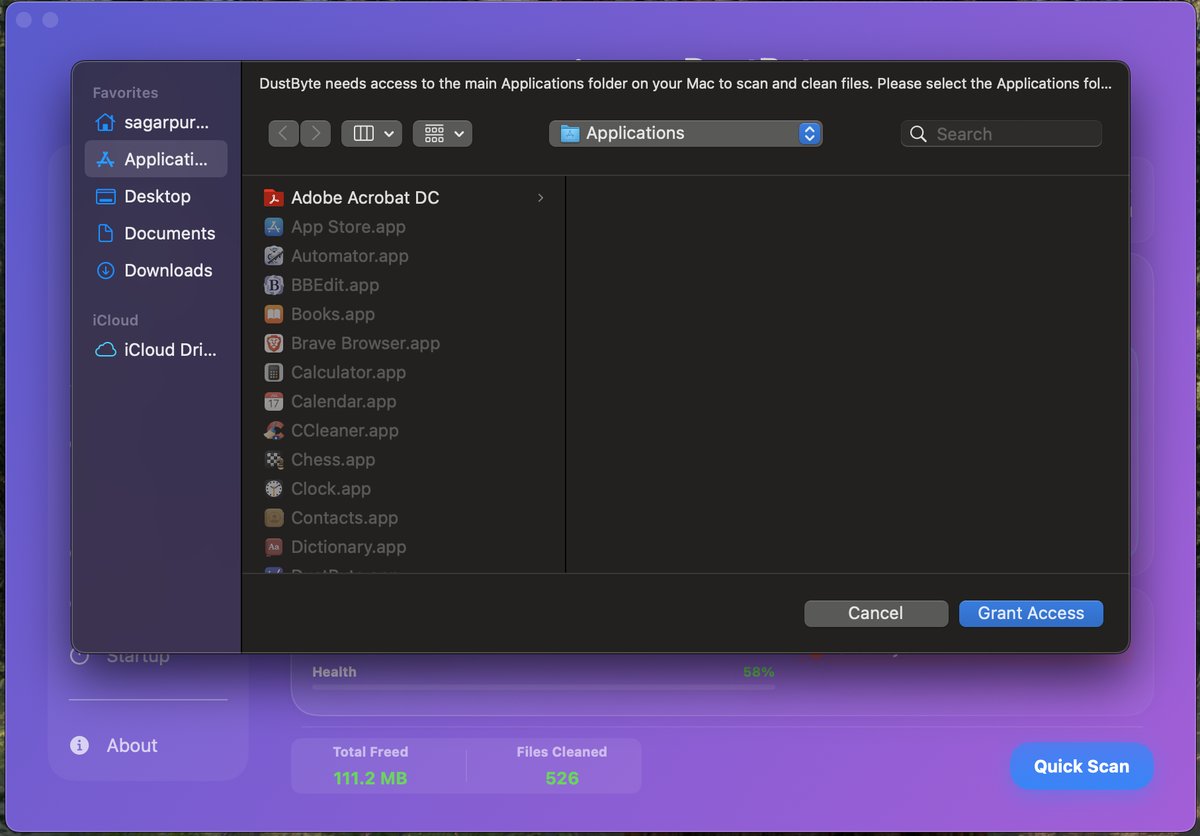
Granting Permissions
DustByte requires certain permissions to function properly. You'll be prompted to grant access to specific directories and system features as needed.
Running Your First Clean
Start with the System Cleaner to remove temporary files and cache data. The app will show you exactly what will be cleaned before proceeding.
Finding Large & Old Files
Open the Large & Old Files tool from the sidebar. Choose the folders you want to scan (e.g., Downloads, Documents, or external drives). After scanning, sort by size or last modified date to quickly spot space hogs and stale files. Review items and delete only what you no longer need.
Troubleshooting
App Won't Launch
If DustByte fails to launch, please begin by restarting your system and verifying that you have the latest version installed from the App Store. Should the issue persist, we recommend contacting DustByte Support and providing the crash logs to assist in diagnosing and resolving the problem.
Permission Issues
DustByte is designed to request the necessary user permissions during the initial setup and securely store them using security-scoped bookmarks for future operations.
If you encounter permission-related issues, navigate to About > Settings > Access to verify that DustByte has the required permissions.
If the issue persists, restarting the application will prompt DustByte to request access again for the relevant directories.
Slow Performance
If DustByte is running slowly, try closing other applications and ensure you have sufficient free disk space available.
Contact Support
Need More Help?
If you can't find the answer to your question in our FAQ or troubleshooting guides, please contact our support team:
Email Support
support@dustbyte.app
Response Time
We typically respond within 24-48 hours
Before Contacting Support:
- Check this FAQ for common solutions
- Ensure you're running the latest version
- Include your macOS version and DustByte version
- Describe the issue in detail